KMPlayer - All Video Player
- 4.1
- Rating
- 10.00M
- Installs
- Free
- Price

 Analysis by App-foxy
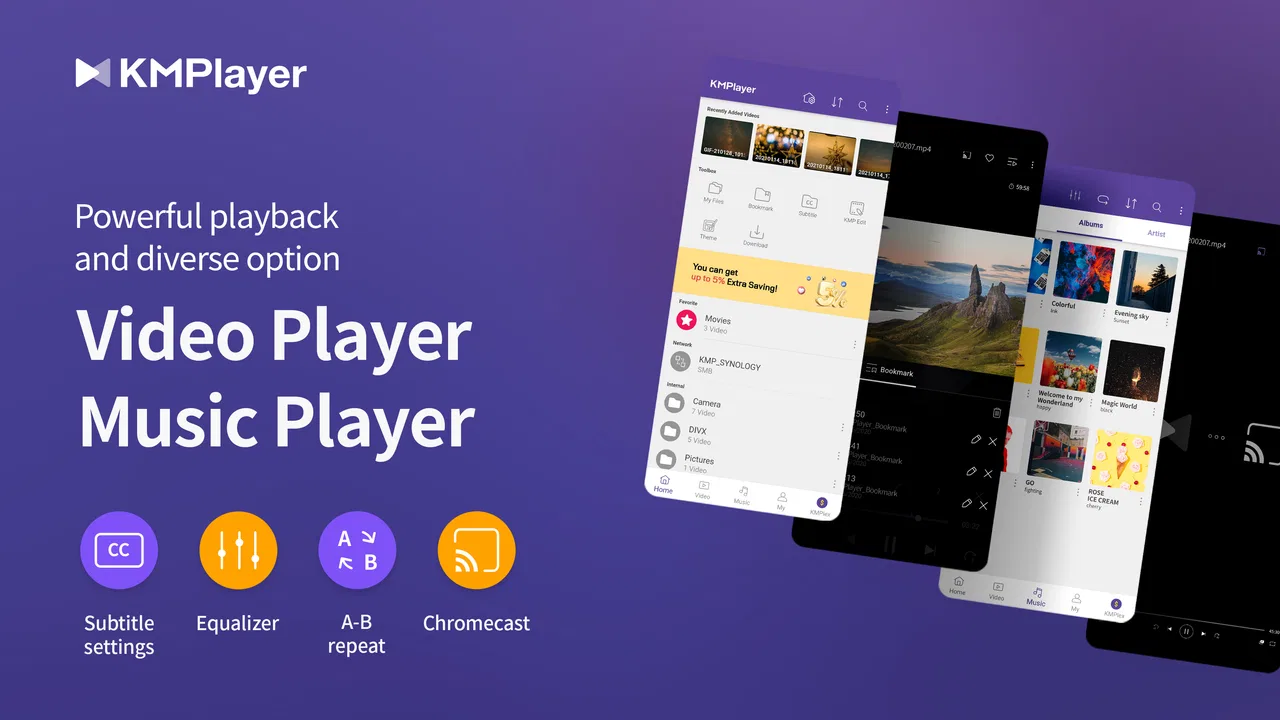
I spent time with KMPlayer - All Video Player as a practical phone and tablet player rather than treating it like a simple file opener. That distinction matters. Its main appeal is straightforward: it is built for people who keep videos in several formats and want one place to play them without converting everything first. The app comes from PANDORA.TV, belongs to the video players and editors category, and is free to install, with optional in-app purchases ranging from $1.99 to $19.99 per item.
My first impression was that KMPlayer is aimed at flexibility more than minimalism. It handles common video files, but its reputation is especially tied to formats such as MPG, MKV and HEVC. In daily use, that makes it more useful than a basic gallery player when your files come from different phones, cameras, computers or downloads. The trade-off is that a flexible player usually gives you more controls to understand, and KMPlayer can feel busier than the default player already installed on your device.
How I use KMPlayer for a dependable everyday workflow
I find a dependable routine starts with checking the video itself before changing player settings: confirm it is fully stored on the device, try a short section, and note whether the problem affects picture, sound, or seeking. That makes it easier to choose a sensible next step instead of changing several things at once. When playback still feels unreliable, I look at the setup around the file as well as the app.
You May Also Like

 Blood Strike: 2.5 Anniversary
Blood Strike’s Loadouts Turn Every Drop Into a Tactical Gamble
A close look at Blood Strike’s custom loadouts: how fast access to signature weapons reshapes its battle royale rhythm, rewards preparation, and narrows the gap between fights.

 Pandora - Music & Podcasts
Pandora’s Music Is Easy to Start, but Harder to Recover
Pandora’s strength is its low-effort path from a seed to a station. Its weak spot is how much confidence it asks you to place in connection, setup, and quiet recovery.

 8 Ball Pool
 Is Built on Rivalries, Rematches, and Routine
A close look at the rivalries, rematches, shared routines, and unanswered safety questions that turn a quick pool match into a persistent mobile community.

 Samsung Music
’s Quiet Strength Is Playing What You Already Own
Its reach comes less from spectacle than from dependable access to a personal library. That simplicity is both the app’s strongest retention engine and its ceiling.

 AccuWeather: Weather Radar
AccuWeather Review: A Quick, Clear Forecast for Everyday Decisions
For everyday plans, the best forecast is the one you can understand quickly. AccuWeather makes rain timing, radar, and local conditions easy to act on, with a few trade-offs.

 Hill Climb Racing
Why Hill Climb Racing Still Turns Crashes Into One More Run
A tiny car, a bumpy hill and one more upgrade: Hill Climb Racing keeps resurfacing because its simple chaos makes every near-miss feel personal.
More From Our News Desk



Starting with local videos instead of changing my whole library
My preferred way to use KMPlayer is to begin with a small, realistic test: I open a few videos that I actually watch, rather than importing an entire library immediately. I check an ordinary phone recording, a larger high-resolution file and one container such as MKV. This quickly shows whether the app fits my personal collection and whether my device handles the files comfortably.
The benefit is that I do not need to reorganize videos into a special folder or convert them before trying playback. When I am moving between a computer and a mobile device, that saves a surprisingly annoying step. I can keep the original file and use the player to open it directly, which is particularly convenient for longer recordings, downloaded lessons or personal clips that are not stored inside a streaming service.
I also like separating the question of “can this file open?” from “does it play well?” A file may start successfully but still show stuttering, delayed sound or excessive battery use. KMPlayer’s broad format support makes the first question easier, but the second still depends on the phone, the video encoding and the available processing power. I would not assume that every HEVC file will be equally smooth on every older device.
A practical scenario: watching a file during a commute
Imagine that I have copied a long video to my phone before leaving home. I open it in KMPlayer, check the picture and sound during the first minute, then use the playback controls rather than relying on a separate conversion app. If the file is large, I avoid experimenting with several other apps at the same time, because background activity can make an older phone feel less responsive.
For this kind of trip, the most useful habit is preparing before I leave. I make sure the file is completely available on the device, start playback once while connected to Wi-Fi, and confirm that the correct audio track and subtitles appear if the file contains them. This is not a glamorous feature, but it prevents the common problem of discovering a compatibility or storage issue after going offline.
That workflow also explains who will appreciate this app most: people with their own video files. If nearly all of your viewing happens inside Netflix, YouTube or another streaming service, a dedicated local player may not add much to your routine. KMPlayer becomes more compelling when your library is mixed and you want fewer format-related surprises.
What the broad format support changes in real use
The app’s support for formats including MPG, MKV and HEVC is more than a line in a feature list. It changes how I manage files. Instead of keeping one copy optimized for a particular player, I can test the original file first. That is useful for preserving quality and avoiding unnecessary re-encoding, which can take time and sometimes introduces visible artifacts.
Still, I treat format support as a starting point, not a guarantee of perfect playback. A container, codec, resolution and audio track all affect the result. If a file refuses to behave, I first try a shorter sample, close demanding apps and check whether the same problem occurs with another file. If only one file fails, the file itself may be the issue. If everything struggles, the device may simply be beyond its comfortable limit.
Keeping the interface manageable
My advice for a first session is not to change every option. I open a video, learn where the basic controls are, and only then adjust the settings that solve a real problem. This keeps the player from becoming a project. The app is most useful when it disappears into the background and lets me watch, not when I spend more time tuning it than viewing content.
I also recommend using a consistent naming and storage habit outside the player. KMPlayer can make playback easier, but it does not replace a well-organized library. I keep films, lessons and personal recordings in separate folders and use clear filenames. That makes the app easier to navigate and makes it simpler to locate the same file later from a file manager.
Settings I would check before changing anything advanced
The first setting I care about is picture quality versus smooth performance. High-resolution video can look excellent, but the best choice is not always the highest possible output. On a modest phone, a lighter playback approach may be preferable to a sharper image that causes dropped frames. I judge this with a moving scene, not a still image, because motion exposes stutter much faster.
Next, I check subtitle behavior when I need subtitles. I confirm that the text is readable against bright and dark scenes and that it stays synchronized. If a subtitle file is separate, I keep it near the video and use matching names where possible. That simple habit reduces searching and makes the pairing more predictable than scattering the files across unrelated folders.
Audio deserves a similar check. A video can look perfect while the dialogue is too quiet or the soundtrack overwhelms speech. I test a scene with conversation and another with music before settling on a volume level. I avoid judging the player only with headphones, because the phone speaker may reveal a different balance and make a file seem less usable in ordinary situations.
I also pay attention to gestures and playback controls. Experienced users benefit from learning one or two repeatable motions for seeking and volume rather than tapping randomly around the screen. The exact comfort of these controls depends on the device and the way I hold it, so I prefer a short practice session with a familiar video before using them while walking or commuting.
The best setup is the one that removes repeated friction. If I always watch lectures, I prioritize seeking and subtitle readability. If I watch films, I care more about stable picture quality, audio balance and remembering my position. The same app can serve both habits, but the useful settings are not identical.
Small adjustments that make longer viewing easier
For a long video, I prepare the phone before pressing play. I close apps I do not need, check available storage if I have recently copied a large file, and lower the screen brightness to a comfortable level instead of leaving it at maximum. These steps are not KMPlayer features, but they make its role as a local player more dependable.
I also avoid making a permanent decision based on one difficult file. A single unusually demanding video can make a capable player appear unreliable. I compare it with a normal file, then decide whether the problem is the app, the device or the media itself. This is a more useful test than immediately searching for a replacement.
Faster patterns for people who watch the same types of videos
Once I know that a particular kind of file plays well, I use a repeatable routine. I store similar content together, open it from the same location and keep the same subtitle naming style. The result is faster than repeatedly browsing through downloads or trying several players. KMPlayer works best for me when I pair its format flexibility with a predictable file system.
Another useful pattern is checking the start and end of a file before a planned viewing session. I play the opening section to verify the audio, then jump near the end to make sure seeking behaves normally. This matters for long recordings, because a file that plays at the beginning may still have an issue later. I would rather discover that at home than during a presentation or trip.
For study material, I use short review loops. I return to a difficult section, seek back a little, and listen again instead of restarting the entire video. This is where a capable player becomes more than a passive viewer: the controls support a deliberate learning habit. I would still choose a dedicated study app if I needed notes, quizzes or course tracking, but KMPlayer is effective for focused replay of ordinary video files.
For family recordings, I take a different approach. I keep the original files untouched and use the player only for viewing. That avoids accidental compression and preserves the source quality. I do not rely on a media player as a backup system, though; important videos should exist somewhere else as well, because playback convenience is not the same as file protection.
Where it compares well with ordinary alternatives
The default video player on a phone usually wins on simplicity. It is already present, often opens common recordings immediately and may fit neatly into the gallery. If all I need is to watch videos made by the same phone, I would not install another app just for the sake of having more buttons.
KMPlayer earns its place when the default option becomes restrictive. Mixed formats, MKV files, HEVC content and videos transferred from other devices are the situations where I notice the difference. Instead of converting files or searching for a compatible app each time, I have a stronger chance of opening them in one familiar player.
Streaming apps are different rather than directly better or worse. They are built around catalogs, accounts and online delivery, while KMPlayer is centered on files I already have. Someone who wants recommendations and instant access to an online library should choose a streaming service. Someone who wants control over personal media should look at a local player such as this one.
There is also a trade-off against very lightweight players. A simpler alternative may feel cleaner and use fewer controls, while KMPlayer gives me more room to handle varied media. I would choose the lighter option for a child or a relative who only needs one-tap playback. I would choose KMPlayer for myself when compatibility matters more than an absolutely minimal interface.
Advanced limits I would not ignore
Broad compatibility does not remove hardware limits. Older phones may struggle with demanding HEVC files, high-resolution footage or heavy multitasking. If playback is not smooth, I first reduce the workload around the app and test another file. I would not promise that installing KMPlayer alone can turn an aging device into a modern media machine.
Storage is another practical limit. A local player is only as useful as the files I can keep available. Large videos can fill a phone quickly, and moving them between folders can become confusing. I recommend keeping only the files needed for the current task on the device and storing the rest elsewhere. That makes browsing faster and leaves room for ordinary phone use.
The free model is attractive, but optional purchases are part of the experience. I would install the free version first and decide whether it already covers my routine before spending anything. The listed age rating is Everyone, which makes the app broadly accessible, but that does not mean every video opened through it is suitable for every viewer; the content depends on the files being played.
I also would not confuse a player with an editor. KMPlayer sits in the video players and editors area, but my main experience is playback. If I need trimming, transitions, captions created from scratch or a finished social-media export, I would use a dedicated editing tool. Choosing the right kind of app prevents disappointment and avoids forcing a player into a job it was not designed to handle.
Privacy and file-management expectations should be realistic as well. I use it to view media, not as my only archive or as a replacement for a file manager. I keep important originals backed up separately and avoid treating a convenient playback list as a permanent catalog. That separation makes the overall workflow safer and easier to maintain.
Who should choose it, and who should skip it
I recommend KMPlayer to viewers who regularly handle local videos in different formats, especially people moving files between computers, cameras and mobile devices. It is also a good fit for students watching downloaded lessons, travelers preparing offline entertainment and families reviewing recordings without converting them first.
I would hesitate to recommend it to someone who watches only through streaming services, wants the cleanest possible interface or needs a full editing suite. In those cases, the phone’s built-in player, a streaming app or a dedicated editor may be a better match. More flexibility is not automatically better when the extra controls do not solve a problem.
The app has been available since March 19, 2014, and its current version is 36.04.235. It runs on Android 7.0 and later, so compatibility is reasonably broad for supported devices. Its scale is also clear from its reach: it has passed ten million installs, with an average rating of 4.1 from around 387 thousand ratings and about 6.4 thousand written reviews. I see those figures as evidence of a well-established option, not as a substitute for testing it with my own files.
My verdict after building a repeatable routine
KMPlayer - All Video Player is strongest when I treat it as a flexible local playback tool, not as an all-purpose media system. Its support for varied formats reduces the need for conversion, and its usefulness grows when I combine it with tidy folders, quick compatibility checks and a few practiced playback habits.
It is not the most sensible choice for every viewer. The default player remains easier for simple recordings, streaming apps are better for online catalogs, and editors are better for creating finished videos. KMPlayer can also expose the limits of an older phone when a file is especially demanding. Those are real boundaries, but they do not cancel its main strength.
For me, the deciding question is simple: do I often receive or keep video files that ordinary players handle poorly? If the answer is yes, this free app is worth trying before I start converting media or installing several specialized players. If the answer is no, its extra flexibility may sit unused. After testing it with a varied personal library, I would recommend it to practical viewers who value compatibility and control more than a bare, one-button experience.
FAQs for KMPlayer - All Video Player
01What video formats does KMPlayer support?
KMPlayer is renowned for its extensive format support, accommodating everything from MP4, AVI, and MOV to MKV, FLV, and 3GP. It can also handle high-definition files such as 4K and UHD. This versatility ensures you can play almost any media file without needing additional codecs or plugins.
02Is KMPlayer free to use?
Yes, KMPlayer is free to download and use. However, it may offer in-app purchases or display ads, which can be removed by purchasing the premium version. This ensures a smoother, ad-free experience and may unlock additional features for avid users.
03Can I use KMPlayer on both Android and iOS devices?
Absolutely. KMPlayer is available on both Android and iOS platforms, ensuring a seamless media experience across devices. Whether you're on a smartphone or tablet, you can enjoy its features and capabilities without any compatibility issues.
04Does KMPlayer support subtitles?
Yes, KMPlayer supports a wide range of subtitle formats, including SRT, ASS, and SSA. The app allows users to adjust subtitle sync, size, and color, ensuring a personalized viewing experience. You can also search and download subtitles directly within the app.
05Are there any unique features in KMPlayer?
KMPlayer offers several unique features, such as a floating screen option, playback speed controls, and a variety of customization options. It also includes a cloud service for storing and accessing media files. These features make it stand out as a powerful and flexible video player.
Pros
- Supports a wide range of video formats.
- Intuitive and user-friendly interface.
- Offers subtitle download and sync.
- High-quality video playback settings.
- No ads in the premium version.
Cons
- Free version contains ads.
- Some features require in-app purchases.
- Occasional playback lag on older devices.
- Limited cloud storage integration.
- Resource-heavy on low-end devices.

KMPlayer - All Video Player
Gallery